
How to Keep Night Shift On All the Time on Mac
Short answer: macOS has no “always on” setting for Night Shift. The closest built-in option is a custom schedule that covers 23 hours and 59 minutes, but macOS can still switch Night Shift off after sleep, a restart, or at the schedule boundary. To keep it on permanently you need a small helper app that turns it back on automatically — that’s what Night Shift Keeper does.
Want Night Shift to just stay on? Night Shift Keeper does it automatically. Free to download.
Download FreeBelow are all four ways to get a warm screen around the clock, from free settings tweaks to the permanent fix, with the honest trade-offs of each. On an iPhone or iPad instead? Jump to the iPhone note.
Why macOS Keeps Turning Night Shift Off
Apple built Night Shift as a schedule-driven feature. It assumes you want a warm screen in the evening and a normal one during the day, so it only gives you three modes:
- Off — Night Shift only comes on when you turn it on manually.
- Sunset to Sunrise — uses your location to follow local sunset and sunrise.
- Custom — you pick a start and end time.
Whichever you choose, Night Shift is off for part of the day, and turning it on by hand only lasts until the next scheduled change. macOS also re-evaluates the Night Shift state after sleep, restarts, and display changes, which is when many people find it unexpectedly off.
Option 1: The Near-24-Hour Custom Schedule (Free)
- Open System Settings → Displays.
- Click Night Shift… at the bottom of the window.
- Set Schedule to Custom.
- Set it to run from, for example, 4:00 AM to 3:59 AM.
What you get: Night Shift is scheduled for all but one minute a day.
The limits: the screen flashes back to normal at the boundary, and the schedule doesn’t always survive sleep or a restart cleanly. It’s the best free option inside Night Shift itself, but not a guarantee.
Option 2: “Turn On Until Tomorrow” (Free)
In the same Night Shift panel there’s a Turn on until tomorrow switch, and Control Center has a Night Shift button under Display. Both turn Night Shift on immediately.
The limits: as the name says, it lasts until the next day. You’ll be switching it on again every day, and often after waking your Mac.
Option 3: Accessibility Color Filters (Free, but a Different Look)
macOS has a separate accessibility feature that does stay on permanently: a color tint.
- Open System Settings → Accessibility → Display.
- Turn on Color Filters and set the filter type to Color Tint.
- Pick a warm amber color and lower the intensity until it’s comfortable.
The limits: it’s a flat tint laid over everything rather than Night Shift’s shift of the display’s white point, so whites tend to look muddy and colors less natural. Some people are happy with it; many switch it off after a day. It’s worth a try before paying for anything.
Option 4: Night Shift Keeper (Permanent Fix)
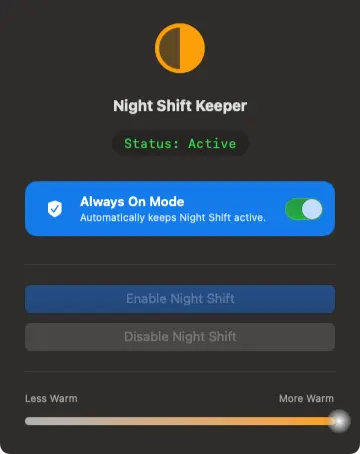
We built Night Shift Keeper because none of the options above keep real Night Shift on reliably. It’s a small native Mac utility that does one thing:
- Watches the Night Shift state and turns it straight back on whenever macOS switches it off — at sunrise, at the end of a schedule, after sleep, after a restart.
- Uses Apple’s own Night Shift, so you keep the same look and the same warmth slider. No overlay, no color tint.
- Lightweight: it sits in the background and does very little until macOS changes something.
The app is free to download; the Always On feature unlocks with a one-time license. There’s no subscription.
All Four Options Compared
| Option | Stays on 24/7? | Survives sleep & restart? | Looks like Night Shift? | Cost |
|---|---|---|---|---|
| Custom schedule | Almost (1-minute gap) | Not reliably | Yes | Free |
| Turn on until tomorrow | No | No | Yes | Free |
| Color Filters tint | Yes | Yes | No (flat tint) | Free |
| Night Shift Keeper | Yes | Yes | Yes | Free app, one-time license for Always On |
On iPhone or iPad?
iOS has the same limitation: there’s no always-on Night Shift setting. The same free workarounds apply — a near-24-hour custom schedule under Settings → Display & Brightness → Night Shift, or a permanent warm tint under Settings → Accessibility → Display & Text Size → Color Filters. Night Shift Keeper is a Mac app, so it won’t help on your phone.
Common Questions
Is it bad to keep Night Shift on all the time?
No. Night Shift only changes the color of your screen. The main trade-off is color accuracy, so turn it off while editing photos or video where colors matter.
Is there a Terminal command to keep Night Shift on?
macOS has no supported command-line setting for an always-on mode. Scripts you’ll find online rely on private system frameworks and tend to break between macOS versions.
Why does Night Shift keep turning off on its own?
Usually the schedule, sleep, or a display change. Our troubleshooting guide walks through each cause and fix.
Keep Real Night Shift On, 24/7
Night Shift Keeper turns Night Shift back on whenever macOS switches it off — after sleep, restarts, and sunrise.
Download Free for macOSFree to download and try • Always On unlocks with a one-time $16.99 license • 7-day money-back guarantee