
How to Reduce Eye Strain on Mac: Display Settings That Help
Long days at a Mac screen often end with tired, dry eyes, blurry focus, or a headache. That’s digital eye strain, and it’s very common. The good news: most of it comes from how we use screens, and a handful of Mac settings and habits make a real difference.
Want Night Shift to just stay on? Night Shift Keeper does it automatically. Free to download.
Download Free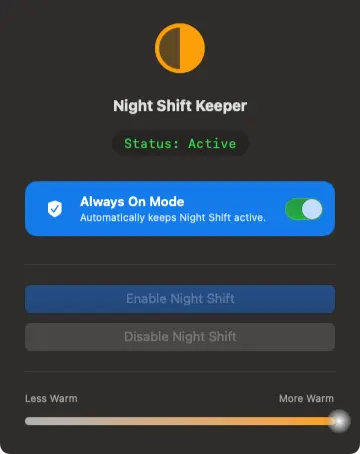
What Actually Causes Digital Eye Strain
The American Academy of Ophthalmology points mainly to the way we use screens rather than the light itself:
- Less blinking. We blink much less while concentrating on a screen, so eyes dry out.
- Long stretches of close focus without looking into the distance.
- Glare and brightness mismatch — a screen much brighter or dimmer than the room around it.
- Small text and poor distance or posture, which make you squint or lean in.
Blue light gets a lot of attention, but the AAO says screen blue light doesn’t damage your eyes. Where it does matter is sleep: bright, blue-rich light late in the evening can make it harder to wind down. More on that in does Night Shift actually block blue light?
Mac Display Settings That Help
1. Match brightness to the room
In System Settings → Displays, turn on Automatically adjust brightness. A screen that glows much brighter than the room is a common source of discomfort, especially at night.
2. Turn on True Tone (if your Mac has it)
True Tone uses your Mac’s ambient light sensors to adjust the screen’s white balance to the light around you, so a white page looks less harsh under warm indoor lighting. You’ll find the switch in System Settings → Displays on supported Macs.
3. Use a warmer color temperature
Many people find a warmer screen more comfortable, particularly in the evening or in rooms with warm lighting. Night Shift’s Color Temperature slider (System Settings → Displays → Night Shift…) isn’t labeled in Kelvin, but as a rough guide:
- About 6500K is a typical screen default — best for color-accurate work.
- About 4500K–5500K is a gently warm white that most people can work in all day without colors looking wrong.
- About 2700K–3400K is the warm “incandescent bulb” range many people prefer late at night.
Comfort is personal: start in the middle of the slider and move it warmer until white pages stop feeling harsh.
4. Make text bigger
If you lean in to read, text is too small. In System Settings → Displays, pick a scaled resolution toward Larger Text, and use Command–Plus to zoom web pages.
5. Cut glare
Avoid having a bright window directly behind or in front of the screen, and tilt the display to dodge overhead reflections.
6. Try Dark Mode at night
Dark Mode (System Settings → Appearance) cuts the amount of bright white on screen, which many people prefer in a dark room. In bright rooms, light mode is often easier to read. See Night Shift vs True Tone vs Dark Mode for how these settings work together.
Habits Matter as Much as Settings
- Follow the 20-20-20 rule: every 20 minutes, look at something about 20 feet away for 20 seconds.
- Blink on purpose, and consider lubricating eye drops if your eyes feel dry.
- Sit about an arm’s length away, with the top of the screen at or slightly below eye level.
If strain, headaches, or blurry vision persist, see an optometrist or ophthalmologist. An out-of-date prescription is a common hidden cause, and no display setting fixes that.
Keeping Your Screen Warm Consistently
If you like a warm screen during the day too, macOS gets in the way: Night Shift switches off when its schedule ends and can reset after sleep or a restart, so the screen flips back to cool white. Some people find that constant switching more annoying than either setting on its own.
Night Shift Keeper
Night Shift Keeper keeps macOS Night Shift on at the warmth you choose — through sleep, restarts, and sunrise — so your screen stays the way you like it all day. It’s a comfort tool, not a medical one, and works best alongside the settings and habits above.
Keep Your Screen Warm All Day
Night Shift Keeper keeps Night Shift on through sleep, restarts, and sunrise.
Download Free for macOSFree to download and try • Always On unlocks with a one-time $16.99 license • 7-day money-back guarantee